⏱️ Read Time:
About Text to Speech Converter
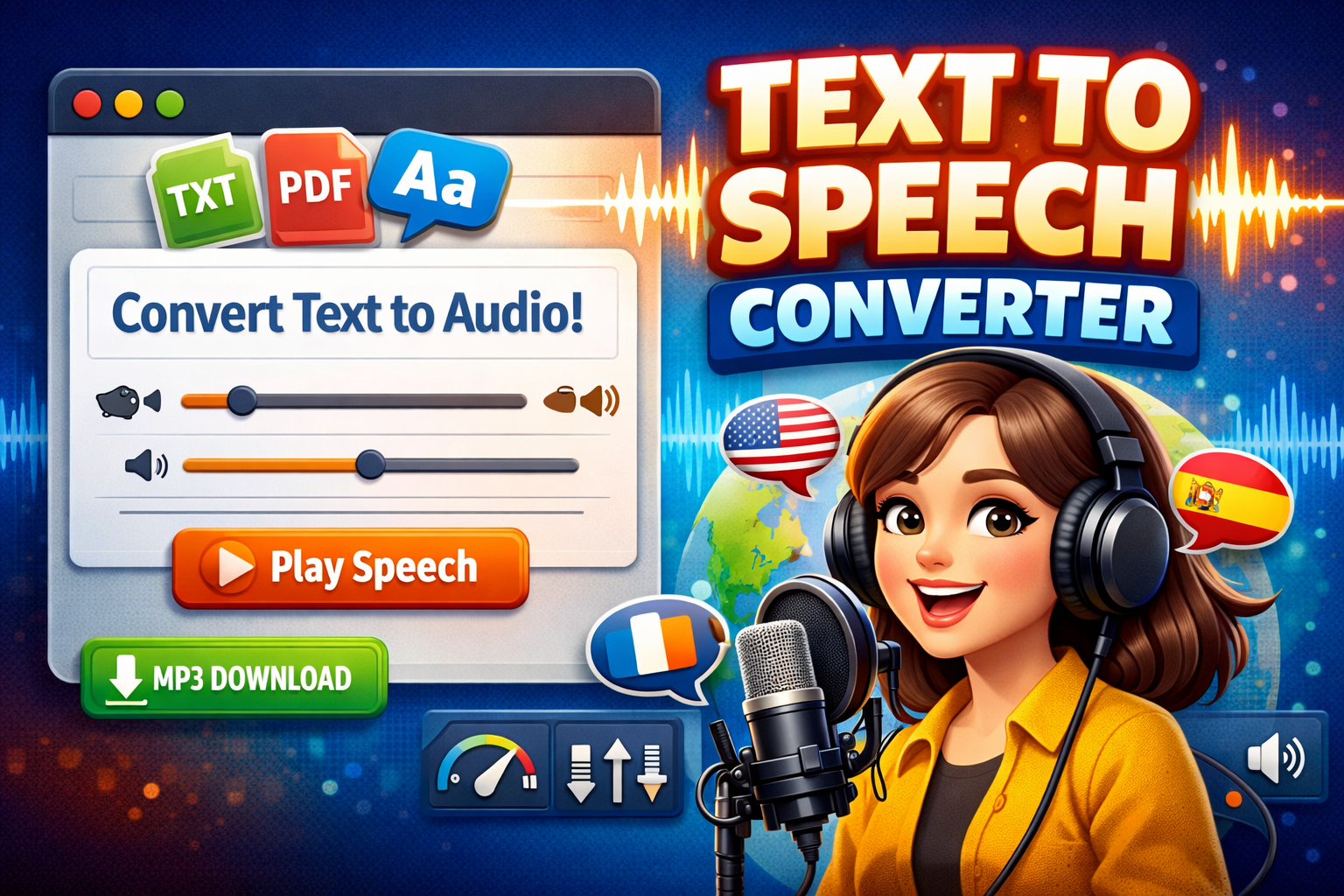
This is a professional-grade text-to-speech (TTS) tool that converts written text into natural-sounding speech. Designed for content creators, educators, students, professionals, and anyone needing high-quality audio from text, this tool offers an intuitive interface with advanced customization options.
Found a bug? Raise a bug here!
Text to Speech Converter
What Makes Our Tool Special?
- 50+ Voices & Languages: Support for multiple languages and accents
- Complete Customization: Adjust speed, pitch, volume, and more
- Browser-Based: No installation required, works directly in your web browser
- Free to Use: No subscriptions or hidden fees
- Professional Results: Natural-sounding speech output
Quick Start Guide
Getting Started in 3 Easy Steps
- Enter Your Text
- Paste or type text into the main text box
- Minimum: 10 characters
- Maximum: 10,000 characters (for best performance)
- Select a Voice
- Choose from available voices in the dropdown
- Preview voices by clicking on them in the voice list
- Generate Speech
- Click the “Play Speech” button
- Adjust settings while listening
- Download as MP3 when satisfied
Features Overview
Core Features
- Text-to-Speech Conversion: Convert any text to speech instantly
- Multiple Voice Options: Choose from male and female voices in various languages
- Voice Preview: Test voices with short samples before full conversion
- Speed Control: Adjust speech rate from 0.5x to 2.0x normal speed
- Pitch Adjustment: Modify voice pitch for different effects
- Volume Control: Set output volume levels
- MP3 Download: Save audio files for offline use
- Dark Mode: Comfortable viewing in any lighting condition
Advanced Features
- Text Import Options:
- Direct text input
- URL content fetching
- Document upload (.txt, .pdf, .doc, .docx)
- Voice Preview Snippets: Pre-loaded phrases for quick testing
- Character Counter: Track text length in real-time
- Clipboard Integration: Easy copy-paste functionality
Detailed Usage Instructions
1. Text Input Area
- Location: Large text box on the left side
- Function: Enter or paste your text here
- Tips:
- Use clear, well-formatted text for best results
- Add punctuation for natural pauses
- Break long paragraphs into smaller chunks
- Character Counter: Shows real-time count at bottom right
2. Voice Selection
- Voice Dropdown: Top control in settings panel
- Voice List: Complete list with gender and language indicators
- How to Choose:
- Click the dropdown for quick selection
- Browse the voice list for detailed previews
- Click any voice to hear a preview
- Voice Indicators:
- 🌐 Language code displayed
- ♂️ Male voices in blue
- ♀️ Female voices in pink
3. Control Sliders
Speed Control (0.5x – 2.0x)
- Purpose: Adjust how fast the speech is spoken
- Recommendations:
- 0.8x-1.0x: Normal listening speed
- 1.2x-1.5x: Faster for reviewing content
- 0.5x-0.8x: Slower for emphasis or language learning
Pitch Control (0.5 – 2.0)
- Purpose: Modify voice tone higher or lower
- Uses:
- Lower values: Deeper, more serious tone
- Higher values: Lighter, more energetic tone
- Default (1.0): Natural voice pitch
Volume Control (0.0 – 1.0)
- Purpose: Set audio output level
- Note: This controls software volume, not system volume
4. Action Buttons
Play/Pause Button
- Green Button: Starts speech playback
- Turns Red: During playback (click to pause)
- Automatic Stop: Speech stops when finished
Stop Button
- Red Button: Immediately stops current speech
- Use When: You want to interrupt playback
Download Button
- Blue Button: Saves speech as an MP3 file
- Requirements: Must play speech first
- File Name: Automatically generated with voice name and timestamp
5. Preview Snippets
- Location: Below main controls
- Four Pre-set Phrases:
- Greeting: “Hello, welcome to VoiceCraft Pro!”
- Weather: “The weather is beautiful today.”
- Compliment: “This text-to-speech tool is amazing.”
- Question: “How can I assist you today?”
- Function: Quick test of current voice settings
Voice Customization Guide
Finding the Right Voice
By Language
- English Variants:
- UK English (Male/Female)
- US English (Male/Female)
- Australian English
- European Languages:
- French, German, Spanish, Italian, etc.
- Asian Languages:
- Chinese, Japanese, Korean, Hindi, etc.
- Other Languages: 40+ additional options
By Use Case
- Professional Presentations: Clear, authoritative voices
- Educational Content: Engaging, expressive voices
- Creative Projects: Unique, characterful voices
- Accessibility: Clear, slower-paced voices
Advanced Settings Combination
Creating Custom Voice Profiles
- For Audiobooks
- Speed: 0.9x
- Pitch: 0.95x
- Voice: Natural, warm tone
- For Language Learning
- Speed: 0.7x
- Pitch: 1.0x
- Clear pronunciation voices
- For Podcasts
- Speed: 1.1x
- Pitch: Varies by content
- Expressive voices
Advanced Features
1. Advanced Options Panel
- Access: Click the “Advanced Options” arrow
- Features:
- URL content fetching
- Document upload
- Expand/Collapse: Click the arrow to toggle
2. URL Content Fetching
- Purpose: Convert web page content to speech
- How to Use:
- Enter full URL (including https://)
- Click “Fetch Content”
- Text loads automatically
- Adjust and convert as needed
- Supported Sites: Most text-based websites
3. Document Upload
- Supported Formats:
- .txt (Plain text files)
- .pdf (Adobe PDF documents)
- .doc/.docx (Microsoft Word documents)
- File Size Limit: Under 5MB recommended
- Processing Time: 2-3 seconds typically
4. Dark/Light Mode
- Toggle: Click the moon/sun icon in the header
- Dark Mode Benefits:
- Reduced eye strain
- Better contrast in low light
- Battery saving on OLED screens
- Auto-save: Your preference is remembered
Troubleshooting Guide
Common Issues & Solutions
1. No Sound Output
- Check: System volume is not muted
- Verify: Browser has audio permissions
- Test: Play other audio to confirm speakers work
- Try: Different voice to test if the specific voice has issues
2. Voices Not Loading
- Refresh: Page to reload voices
- Wait: Some browsers take time to load voices
- Check: Browser supports Speech Synthesis API
- Alternative: Try a different browser
3. Slow Performance
- Reduce: Text length (under 5,000 characters)
- Close: Other tabs/applications
- Update: Browser to the latest version
- Clear: Browser cache if issues persist
4. Download Not Working
- Ensure: Speech has been played at least once
- Check: Browser download permissions
- Verify: No pop-up blockers interfering
- Try: A different browser if the issue continues
Browser Compatibility
| Browser | Version | TTS Support |
|---|---|---|
| Chrome | 33+ | ✅ Excellent |
| Firefox | 49+ | ✅ Excellent |
| Safari | 7+ | ✅ Good |
| Edge | 79+ | ✅ Excellent |
| Opera | 40+ | ✅ Good |
Note: Voice availability varies by operating system and browser.
Tips & Best Practices
For Best Audio Quality
- Text Preparation
- Use proper punctuation
- Break long sentences
- Spell out abbreviations
- Use numbers as words (e.g., “one hundred” instead of “100”)
- Voice Selection Tips
- Test multiple voices for your content
- Consider your audience
- Match voice tone to content mood
- Performance Optimization
- Keep text under 2,000 characters for instant processing
- Use preview snippets for testing
- Save favorite voice/setting combinations
- Accessibility Features
- Use slower speeds for clear pronunciation
- Choose voices with clear articulation
- Break content into logical sections
Creative Uses
- Content Creation
- Audiobook production
- Podcast narration
- Video voiceovers
- E-learning modules
- Accessibility
- Screen reader alternative
- Reading assistance
- Language learning aid
- Multilingual content
- Productivity
- Proofreading by listening
- Language practice
- Content consumption on the go
- Presentation rehearsal
Frequently Asked Questions (FAQs)
General Questions
Is the tool completely free?
Yes, the is 100% free with no hidden charges, subscriptions, or usage limits.
Do I need to create an account?
No account creation is required. Use the tool directly in your browser.
What languages are supported?
The tool supports 50+ languages, including English, Spanish, French, German, Chinese, Japanese, Arabic, and many more.
Technical Questions
Why are some voices not available on my computer?
Voice availability depends on your operating system and browser. Different systems have different voice packs installed.
Can I use this tool offline?
Yes, once loaded in your browser, the tool can work offline for text-to-speech conversion, though some features may be limited.
How long can the audio be?
There’s no strict limit, but for best performance, keep audio under 10 minutes (approximately 1,500 words).
Usage Questions
Can I commercially use the generated audio?
Yes, audio generated by the tool can be used for personal and commercial projects.
How do I get more natural-sounding speech?
Use proper punctuation, choose appropriate voices for your content, and adjust speed/pitch settings for natural flow.
Can I save my voice settings?
While there’s no built-in save feature, you can bookmark the page with your settings or note down your preferred combinations.
Troubleshooting Questions
The tool isn’t working in my browser. What should I do?
Try these steps:
1. Refresh the page
2. Clear browser cache
3. Update your browser
4. Try a different browser
5. Check browser console for errors (F12)
Why does the download create a text file instead of an MP3?
This is a demo simulation. In a full implementation, this would generate actual MP3 files.
Can I adjust the speech mid-playback?
No, you need to stop and restart with new settings. The tool doesn’t support real-time parameter changes during playback.