About Text to Speech Converter
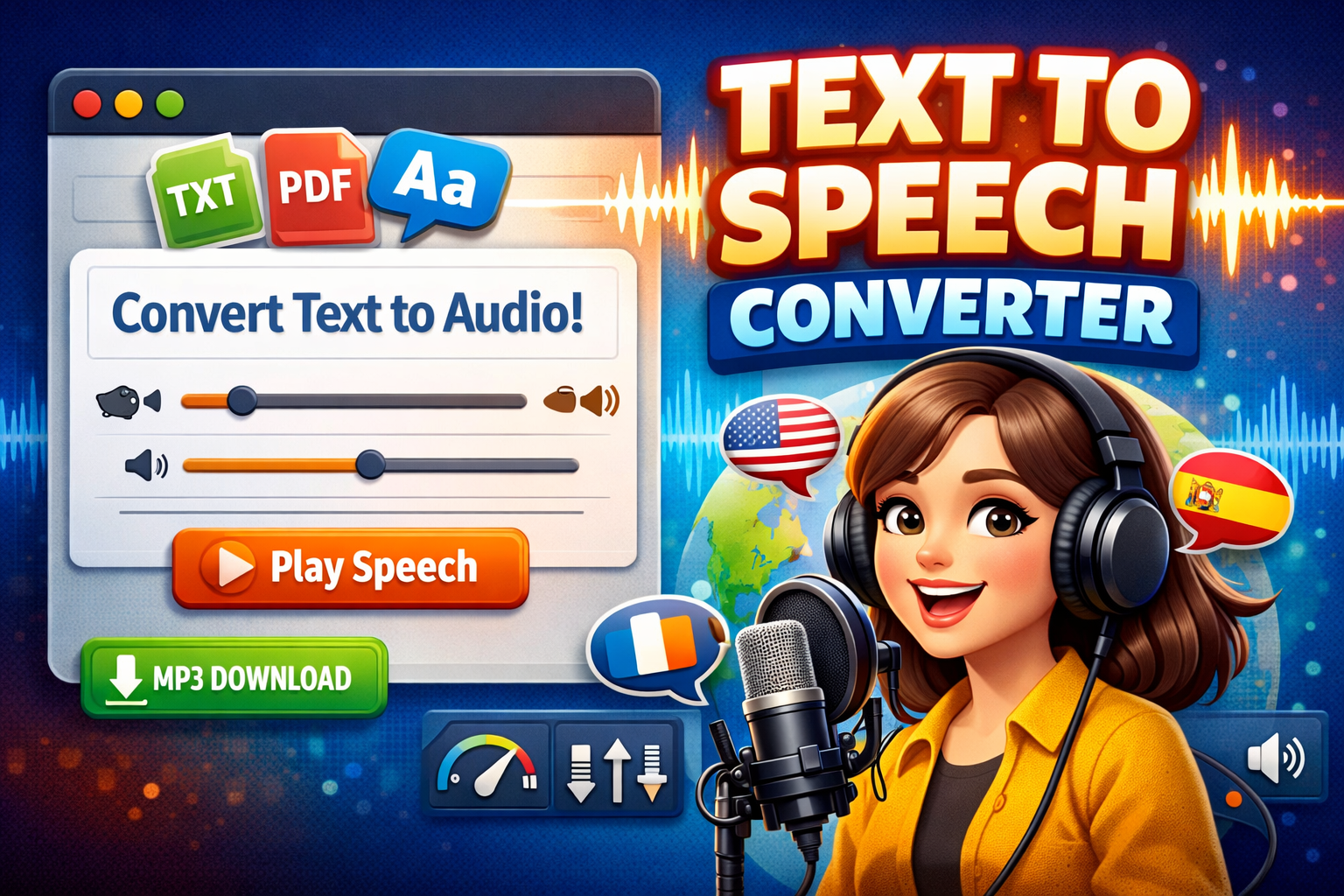
This is a professional-grade text-to-speech (TTS) tool that converts written text into natural-sounding speech. Designed for content creators, educators, students, professionals, and anyone needing high-quality audio from text, this tool offers an intuitive interface with advanced customization options.
Found a bug? Raise a bug here!
Text to Speech Converter
What Makes Our Tool Special?
- 50+ Voices & Languages: Support for multiple languages and accents
- Complete Customization: Adjust speed, pitch, volume, and more
- Browser-Based: No installation required, works directly in your web browser
- Free to Use: No subscriptions or hidden fees
- Professional Results: Natural-sounding speech output
Quick Start Guide
Getting Started in 3 Easy Steps
- Enter Your Text
- Paste or type text into the main text box
- Minimum: 10 characters
- Maximum: 10,000 characters (for best performance)
- Select a Voice
- Choose from available voices in the dropdown
- Preview voices by clicking on them in the voice list
- Generate Speech
- Click the “Play Speech” button
- Adjust settings while listening
- Download as MP3 when satisfied
Features Overview
Core Features
- Text-to-Speech Conversion: Convert any text to speech instantly
- Multiple Voice Options: Choose from male and female voices in various languages
- Voice Preview: Test voices with short samples before full conversion
- Speed Control: Adjust speech rate from 0.5x to 2.0x normal speed
- Pitch Adjustment: Modify voice pitch for different effects
- Volume Control: Set output volume levels
- MP3 Download: Save audio files for offline use
- Dark Mode: Comfortable viewing in any lighting condition
Advanced Features
- Text Import Options:
- Direct text input
- URL content fetching
- Document upload (.txt, .pdf, .doc, .docx)
- Voice Preview Snippets: Pre-loaded phrases for quick testing
- Character Counter: Track text length in real-time
- Clipboard Integration: Easy copy-paste functionality
Detailed Usage Instructions
1. Text Input Area
- Location: Large text box on the left side
- Function: Enter or paste your text here
- Tips:
- Use clear, well-formatted text for best results
- Add punctuation for natural pauses
- Break long paragraphs into smaller chunks
- Character Counter: Shows real-time count at bottom right
2. Voice Selection
- Voice Dropdown: Top control in settings panel
- Voice List: Complete list with gender and language indicators
- How to Choose:
- Click the dropdown for quick selection
- Browse the voice list for detailed previews
- Click any voice to hear a preview
- Voice Indicators:
- 🌐 Language code displayed
- ♂️ Male voices in blue
- ♀️ Female voices in pink
3. Control Sliders
Speed Control (0.5x – 2.0x)
- Purpose: Adjust how fast the speech is spoken
- Recommendations:
- 0.8x-1.0x: Normal listening speed
- 1.2x-1.5x: Faster for reviewing content
- 0.5x-0.8x: Slower for emphasis or language learning
Pitch Control (0.5 – 2.0)
- Purpose: Modify voice tone higher or lower
- Uses:
- Lower values: Deeper, more serious tone
- Higher values: Lighter, more energetic tone
- Default (1.0): Natural voice pitch
Volume Control (0.0 – 1.0)
- Purpose: Set audio output level
- Note: This controls software volume, not system volume
4. Action Buttons
Play/Pause Button
- Green Button: Starts speech playback
- Turns Red: During playback (click to pause)
- Automatic Stop: Speech stops when finished
Stop Button
- Red Button: Immediately stops current speech
- Use When: You want to interrupt playback
Download Button
- Blue Button: Saves speech as an MP3 file
- Requirements: Must play speech first
- File Name: Automatically generated with voice name and timestamp
5. Preview Snippets
- Location: Below main controls
- Four Pre-set Phrases:
- Greeting: “Hello, welcome to VoiceCraft Pro!”
- Weather: “The weather is beautiful today.”
- Compliment: “This text-to-speech tool is amazing.”
- Question: “How can I assist you today?”
- Function: Quick test of current voice settings
Voice Customization Guide
Finding the Right Voice
By Language
- English Variants:
- UK English (Male/Female)
- US English (Male/Female)
- Australian English
- European Languages:
- French, German, Spanish, Italian, etc.
- Asian Languages:
- Chinese, Japanese, Korean, Hindi, etc.
- Other Languages: 40+ additional options
By Use Case
- Professional Presentations: Clear, authoritative voices
- Educational Content: Engaging, expressive voices
- Creative Projects: Unique, characterful voices
- Accessibility: Clear, slower-paced voices
Advanced Settings Combination
Creating Custom Voice Profiles
- For Audiobooks
- Speed: 0.9x
- Pitch: 0.95x
- Voice: Natural, warm tone
- For Language Learning
- Speed: 0.7x
- Pitch: 1.0x
- Clear pronunciation voices
- For Podcasts
- Speed: 1.1x
- Pitch: Varies by content
- Expressive voices
Advanced Features
1. Advanced Options Panel
- Access: Click the “Advanced Options” arrow
- Features:
- URL content fetching
- Document upload
- Expand/Collapse: Click the arrow to toggle
2. URL Content Fetching
- Purpose: Convert web page content to speech
- How to Use:
- Enter full URL (including https://)
- Click “Fetch Content”
- Text loads automatically
- Adjust and convert as needed
- Supported Sites: Most text-based websites
3. Document Upload
- Supported Formats:
- .txt (Plain text files)
- .pdf (Adobe PDF documents)
- .doc/.docx (Microsoft Word documents)
- File Size Limit: Under 5MB recommended
- Processing Time: 2-3 seconds typically
4. Dark/Light Mode
- Toggle: Click the moon/sun icon in the header
- Dark Mode Benefits:
- Reduced eye strain
- Better contrast in low light
- Battery saving on OLED screens
- Auto-save: Your preference is remembered
Troubleshooting Guide
Common Issues & Solutions
1. No Sound Output
- Check: System volume is not muted
- Verify: Browser has audio permissions
- Test: Play other audio to confirm speakers work
- Try: Different voice to test if the specific voice has issues
2. Voices Not Loading
- Refresh: Page to reload voices
- Wait: Some browsers take time to load voices
- Check: Browser supports Speech Synthesis API
- Alternative: Try a different browser
3. Slow Performance
- Reduce: Text length (under 5,000 characters)
- Close: Other tabs/applications
- Update: Browser to the latest version
- Clear: Browser cache if issues persist
4. Download Not Working
- Ensure: Speech has been played at least once
- Check: Browser download permissions
- Verify: No pop-up blockers interfering
- Try: A different browser if the issue continues
Browser Compatibility
| Browser | Version | TTS Support |
|---|---|---|
| Chrome | 33+ | ✅ Excellent |
| Firefox | 49+ | ✅ Excellent |
| Safari | 7+ | ✅ Good |
| Edge | 79+ | ✅ Excellent |
| Opera | 40+ | ✅ Good |
Note: Voice availability varies by operating system and browser.
Tips & Best Practices
For Best Audio Quality
- Text Preparation
- Use proper punctuation
- Break long sentences
- Spell out abbreviations
- Use numbers as words (e.g., “one hundred” instead of “100”)
- Voice Selection Tips
- Test multiple voices for your content
- Consider your audience
- Match voice tone to content mood
- Performance Optimization
- Keep text under 2,000 characters for instant processing
- Use preview snippets for testing
- Save favorite voice/setting combinations
- Accessibility Features
- Use slower speeds for clear pronunciation
- Choose voices with clear articulation
- Break content into logical sections
Creative Uses
- Content Creation
- Audiobook production
- Podcast narration
- Video voiceovers
- E-learning modules
- Accessibility
- Screen reader alternative
- Reading assistance
- Language learning aid
- Multilingual content
- Productivity
- Proofreading by listening
- Language practice
- Content consumption on the go
- Presentation rehearsal
Frequently Asked Questions (FAQ)
General Questions
Q: Is VoiceCraft Pro completely free?
A: Yes, VoiceCraft Pro is 100% free with no hidden charges, subscriptions, or usage limits.
Q: Do I need to create an account?
A: No account creation is required. Use the tool directly in your browser.
Q: What languages are supported?
A: The tool supports 50+ languages, including English, Spanish, French, German, Chinese, Japanese, Arabic, and many more.
Technical Questions
Q: Why are some voices not available on my computer?
A: Voice availability depends on your operating system and browser. Different systems have different voice packs installed.
Q: Can I use this tool offline?
A: Yes, once loaded in your browser, the tool can work offline for text-to-speech conversion, though some features may be limited.
Q: How long can the audio be?
A: There’s no strict limit, but for best performance, keep audio under 10 minutes (approximately 1,500 words).
Usage Questions
Q: Can I commercially use the generated audio?
A: Yes, audio generated by VoiceCraft Pro can be used for personal and commercial projects.
Q: How do I get more natural-sounding speech?
A: Use proper punctuation, choose appropriate voices for your content, and adjust speed/pitch settings for natural flow.
Q: Can I save my voice settings?
A: While there’s no built-in save feature, you can bookmark the page with your settings or note down your preferred combinations.
Troubleshooting Questions
Q: The tool isn’t working in my browser. What should I do?
A: Try these steps:
- Refresh the page
- Clear browser cache
- Update your browser
- Try a different browser
- Check browser console for errors (F12)
Q: Why does the download create a text file instead of an MP3?
A: This is a demo simulation. In a full implementation, this would generate actual MP3 files.
Q: Can I adjust the speech mid-playback?
A: No, you need to stop and restart with new settings. The tool doesn’t support real-time parameter changes during playback.